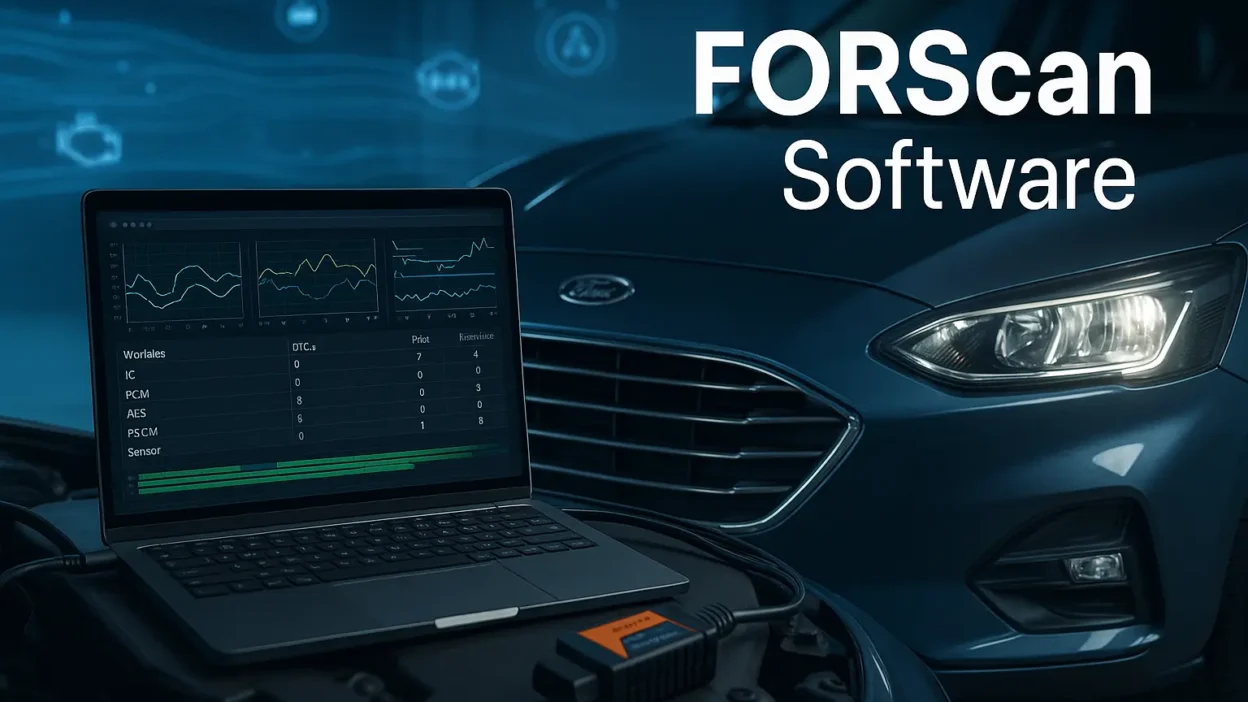
If you happen to own a Ford, Lincoln, or Mercury vehicle and want to dig into your vehicle diagnostics beyond what the factory and scan tools tell you, chances are you have read about FORScan. FORScan Software is such an amazing tool (if you are a true gear head) that you manufacture all changes, modifications, and diagnostics that OBD-II scan tools have no access to. But with all of power you must first determine where to safely and securely download from the internet.
This article will cut out the confusion and provide a series of steps on where to get the right content, the versions of FORScan available, and what hardware you will need to make everything work.
The Singular Official Source
To avoid the potential dangers of malware, spyware, or having outdated software, there is only one official spot you should download FORScan from:
This is the central, official hub for the entire FORScan community and the only location to download officially released software by the official development team. Any other site that offers a “cracked” or their version that doesn’t involve support from FORScan is likely infected and should be avoided.
Why is this so important?
Safety: Downloading from the official site guarantees that you will receive a virus-free download.
The latest version: You will have the latest version of software with the latest features, newest vehicle support, and bug fixes.
Legitimacy: This project exists because the user community has made it possible through their donations. Downloading from the official version also helps support the developers who contribute to the maintenance and improvement of this great tool.
Your Step-by-Step Download User’s Guide
If you visit the official website for FORScan, especially for the first time, it may feel intimidating. Here’s a straightforward process for you to follow.
1. Homepage At-a-glance:
When you first log on to forscan.org, you are greeted by a Forum-style website. Please do not be intimidated! The download-centric areas of this site are in its top navigation bar.
2. Find the Download Page:
You can easily find your way to the download page by clicking on the tab labeled ‘Download’ in the navigation bar. The download page is the hub of all FORScan software.
3. Pick Your Version:
After you have reached the download page, you will be provided with several download options for FORScan. Here’s what they mean:
FORScan for Windows: This version is the most utilized version of the software package, and it is the complete version of FORScan for Windows. This is the version that most users will utilize for deep-level diagnostics and coding.
Stable Release: This is the recommended version. This is the version of the software that has been tested and is the best for most people to use.
Beta Release: This is a pre-release version that has new features and supports newer vehicles. It is ideal for enthusiasts who want to try out the new functions and not worry too much about bugs.
FORScan for Android / iOS: Both of these are mobile versions that can be found on their respective app stores (Google Play Store / Apple App Store). They lean more towards basic diagnostic items and live data monitoring versus the advanced configuration programming, which the Windows version is known for.
In this tutorial we will be focusing on the main windows version.
4. The incredibly important Extended License:
FORScan uses a two-tiered licensing model as to discourage commercial misuse and keep development afloat.
Standard License: Free, but limited to 2 months of usage. Great for testing.
Extended License: Also free, but you need to register just one time. This license is also valid for the life of the software installation (renewing may be required for major version updates and allows access to all service functions.
How to Acquire the Extended License:
On the download page, look for the link to the “FORScan Extended License Registration Page.”
You will need to create an associated hardware key using the FORScan software that you have installed and enter that as well as your email address on the license registration page.
The system will email you a key file (FORScanLicense.key) that you will need to place in your FORScan documents folder in order to enable the extended license.
The Other Half of the Equation: The Required Hardware
FORScan software by itself is not enough, you will need a hardware interface to connect your computer to your vehicle’s OBD-II port.
Recommended Adapter: OBDLink EX
The OBDLink EX from OBDLink is considered the gold standard for FORScan for a good reason. It is designed for MS-CAN HS-CAN switching, which is important for accessing all modules in Ford vehicles. It’s a simple plug-and-play solution that essentially “just works.”
Other Good Alternatives:
vLinker FS: A widely-known and dependable substitute to the OBDLink EX, often comparable in price.
BAFX Products (or entirely generic ELM327 adapters): Appears fine, but, ELM327-TS is the way to go here everything seems to itself (based on the ELM327 chipset with HS/MS-CAN switch) you can often find cheap, sub-$10 Bluetooth ELM327 adapters based on unknown brands to be full of grief for FORScan and often are not able to access priority systems.
Pulling It All Together: Your Quick-Start Checklist
- Download: Navigate to forscan.org, go to the Download page, and select the latest stable version FORScan for Windows.
- Install: Use the installer in the normal fashion on your Windows laptop/tablet.
- Purchase an Adapter: Purchase one of the suggested adapters, such as the OBDLink EX or the vLinker FS.
- Register for a License: Open and run FORScan Software, connect to the provided hardware ID, go to the official license registration site, and request your free Extended License.
- Connect: Plug your adapter into your vehicle’s OBD-II port (commonly find it under the dashboard somewhere in front of or to the side of the steering wheel) and then connect it to your computer.
Closing Advice
FORScan Software is a powerful tool. As you can change module programming (AS-BUILT data), you can also incorrectly disable functions or possibly create error codes by making changes.
Always backup your module programming before making any changes.
Do your homework before changing anything. The FORScan forum is a great place to see what codes you need to change and the steps it takes.
When in doubt, leave it as is.
If you follow this guide and obtain your software and hardware from an appropriate official source, you are on your way to a safe and successful experience into the advanced world of vehicle diagnostics and customization. Happy scanning (and coding).
